What is a shared browser?
Understand shared collections, personal sync, co-browsing, and remote browsers—and choose the right kind of shared context for your project.
Read the guideGood ideas don’t live in one tab. Explore better ways to organize shared browser workspaces, research together, and keep the whole team in context.
Guides and read-only examples. Get to know SharedBrowser.com
A little structure. A lot of possibility.
Where good ideasKeep the question, the sources, and the next step in the same conversation.
Sources with a purpose
Decisions with context
For people who think
better together.
The context is the connection
Give every link a reason to be there. Build the habits and structure that make collaborative browsing useful.
Give your open tabs a purpose. Group references by question, then save the context that makes them useful.
Explore tab organizationBring sources and interpretations together without losing the difference between evidence and opinion.
Browse together thoughtfullyBuild a readable home for the brief, the reference library, the decision, and the next action.
Structure a workspaceMake the next handoff understandable, even when a teammate missed the original conversation.
Follow the workflowKnow the audience before sharing the link. Treat viewing, editing, and inviting as separate questions.
Plan your access boundariesLeave a useful question and a visible next step—not a pile of unexplained bookmarks.
Explore remote-team workflowsA simple place to start
Use this three-part workflow in a collaboration tool your team already trusts.
Write the outcome you need, choose an owner, and decide what belongs in the shared collection.
Define your workspaceAdd readable references and short notes. Distinguish what a source says from what your team concludes.
Build your reference libraryAsk for a specific review, record the decision, and make the next responsible person visible.
Improve your team handoffSee the idea in context
The useful part of a workspace isn’t just the links. It’s knowing what you’re investigating, what you’ve learned, and what happens next.
Keep the current objective in view.
Explain why each source belongs.
Make the next action understandable.
Keep the evidence close to the question.
The question comes first
How should we organize our next shared research project?Start here · Browsing basics
Next · Tab organization
Then · Team workflows
An illustrative collection. Open a card to read its guide; no live session, editing, or participant tracking is running.
Different teams. Shared possibilities.
Explore a starting workflow for research, planning, learning, or guided support.
Keep decisions moving across time zones with a clear brief, annotated sources, and deliberate handoffs.
Explore the workflowConnect every source to the question it answers and the argument your group is building.
Explore the workflowTurn scattered references into a focused shortlist, decision record, and next action.
Explore the workflowDefine a narrow session scope and make the boundaries of guided support easy to understand.
Explore the workflowThe shared browser journal
Practical guides for thoughtful collaboration—not just another list of tools.
Understand shared collections, personal sync, co-browsing, and remote browsers—and choose the right kind of shared context for your project.
Read the guideA project-based method for grouping tabs, saving meaningful references, and handing work to a teammate without passing on the clutter.
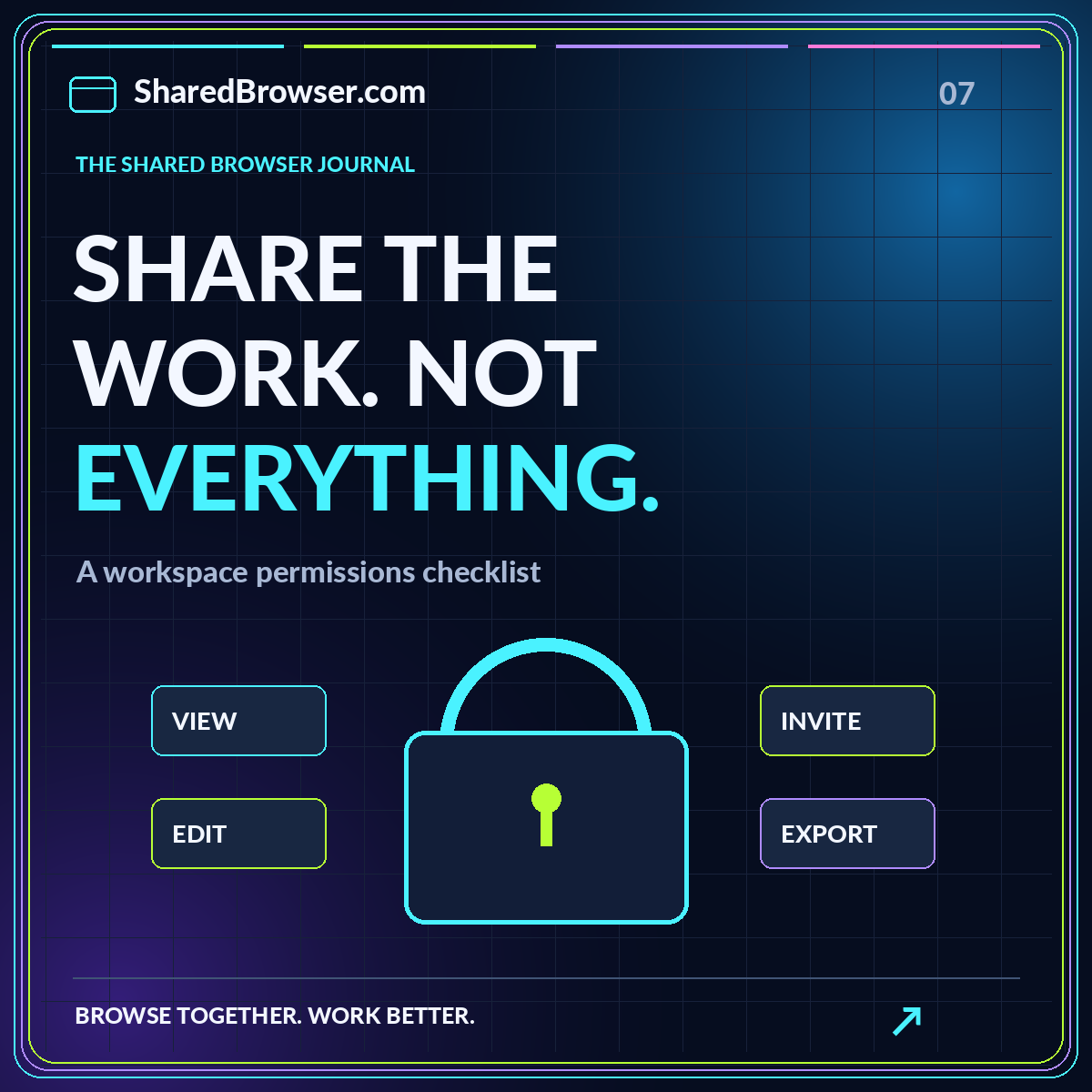
Read the guideDefine who can view, edit, invite, and export. Review workspace access, linked destinations, retention, and the end of a project.
Read the guideA little more context
Understand what this site offers and how to use the workspace examples.
Visit the full FAQSharedBrowser.com is a field guide to collaborative browsing, shared research, and organized browser workspaces. It provides articles, downloadable text checklists, and read-only workspace examples. It does not host browsing sessions or create accounts.
Not necessarily. A workspace can organize links and project context without showing anyone’s live activity. A shared session involves a particular viewing or interaction mode. Our co-browsing comparison explains the distinction.
The workspace examples are read-only illustrations. You can follow their reference links and adapt the text templates to an approved tool you already use. This website has no account creation, saving, or live collaboration service.
Start with one question, a small collection of well-explained sources, a named owner, and a specific next action. The three-step workflow shows how to connect those pieces.
No. Navigation, article reading, FAQ disclosures, and the mobile menu use HTML and CSS. There is no extension to install and no account required to read the material.
Less searching. More finding.
See how questions, sources, and next steps can work together. No account needed to explore.